
To manage the details of transaction parties during transactions, you create a prospect account. Prospect accounts are designed to hold party data, carry the results of compliance checks, and automatically populate details in documents.
Where Prospects Live
Prospect accounts are kept in the Parties section, which you open from the sidebar under Operations. The section has two tabs:
- Prospects — the individuals and companies you transact with, used as buyers and sellers in deals.
- Escrow — accounts of your escrow providers. See Escrow Services for those.
Creating Prospect Accounts
Open Parties, stay on the Prospects tab, and specify the type of entity: choose Add Individual for a private person or Add Company for a corporate entity.
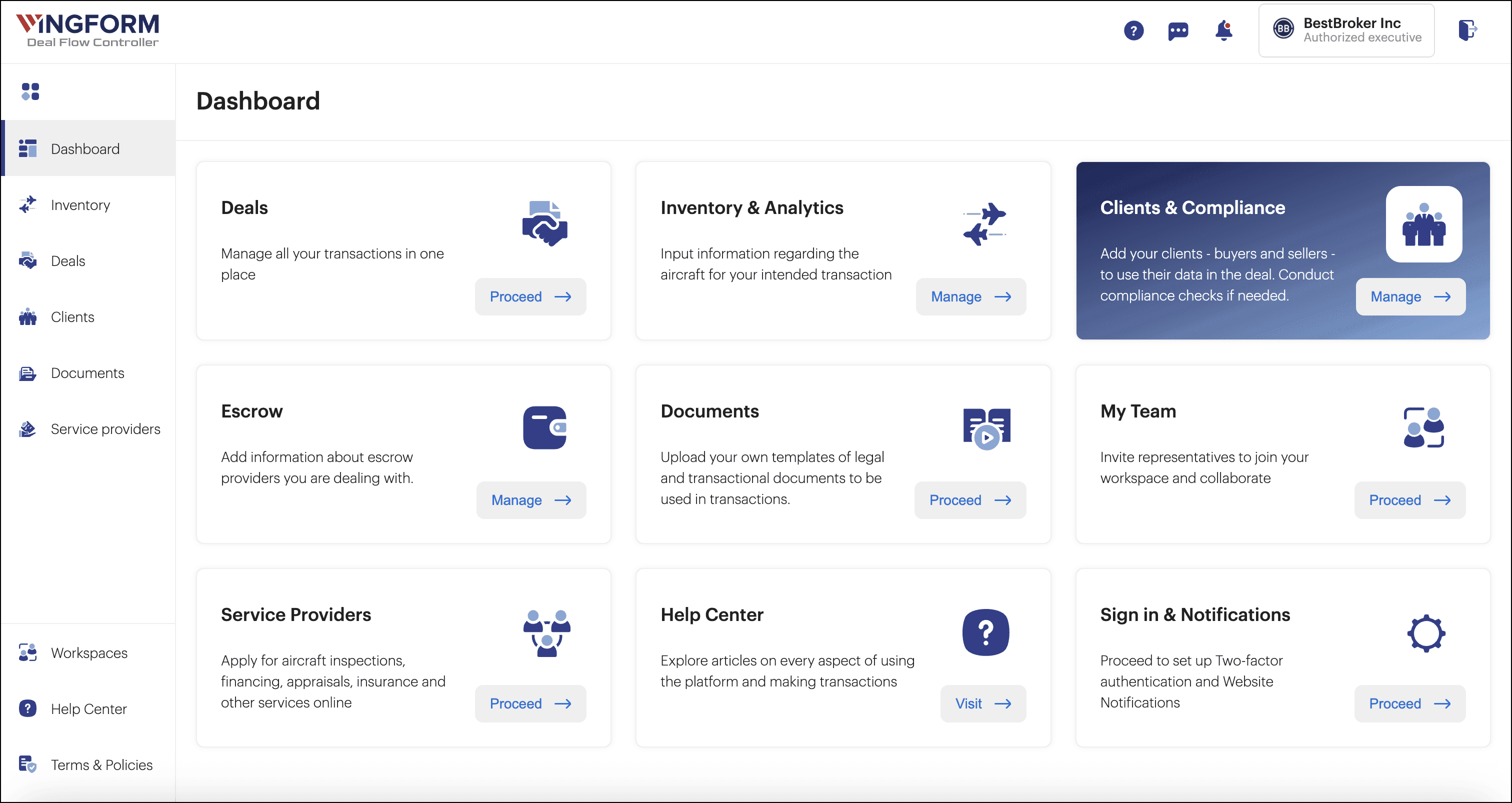
For corporate prospects, you can retrieve details from a global database provided on the platform or enter them manually.
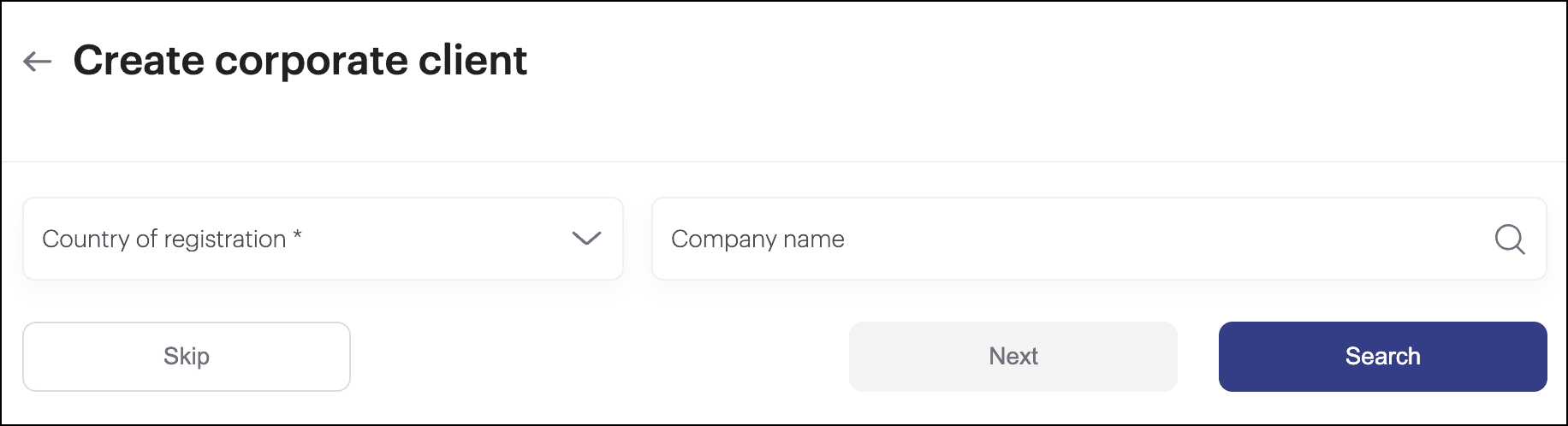
An authorized executive in a corporate prospect account is an official who has the authority to sign documents on behalf of the company. However, you can also assign the signee role to other representatives; their details will then be used in transaction documents instead of the authorized executive's.
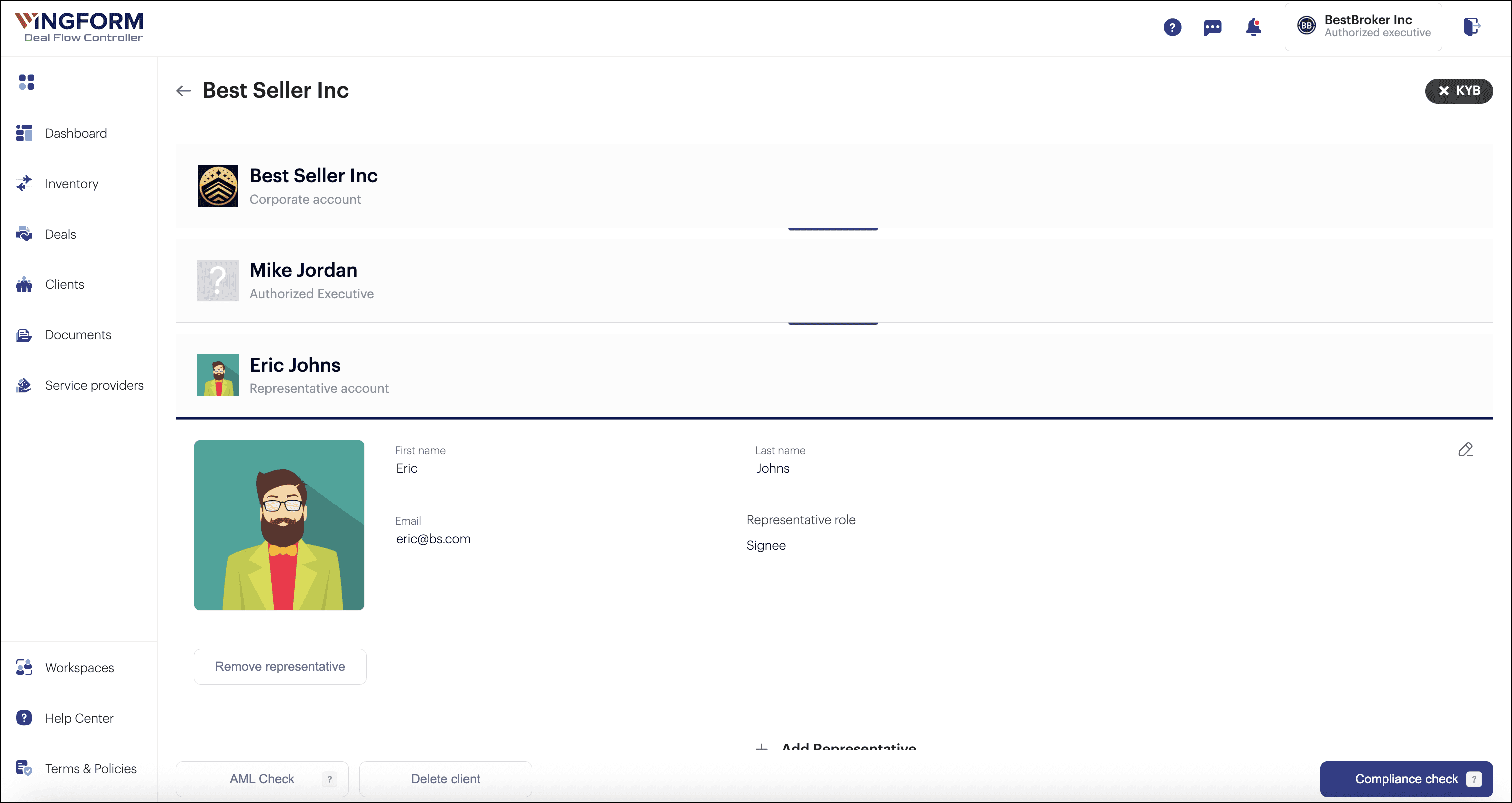
Additionally, you can assign a Manager role to a representative. In this case, invitations for compliance checks will be sent to managers.
A prospect account can also come from the CRM: converting a Contact or a Company reuses the details already saved there and creates the matching individual or corporate prospect. See how the CRM connects to deals.
AML and Compliance Checks
Through integration with a compliance verification provider, Wingform enables you to perform compliance checks (KYC/KYB/AML) directly from your prospect accounts.
AML checks involve automated screening of a company or an individual against global money-laundering, sanctions, and watchlists. Simply enter the prospect's corporate name to receive a report. This process does not require the prospect's involvement.
For more thorough compliance checks, invite the prospect to undergo the check by sending them a link. They will complete the verification online, and once it is finished, you will be notified and receive the report, accessible in the prospect's account.
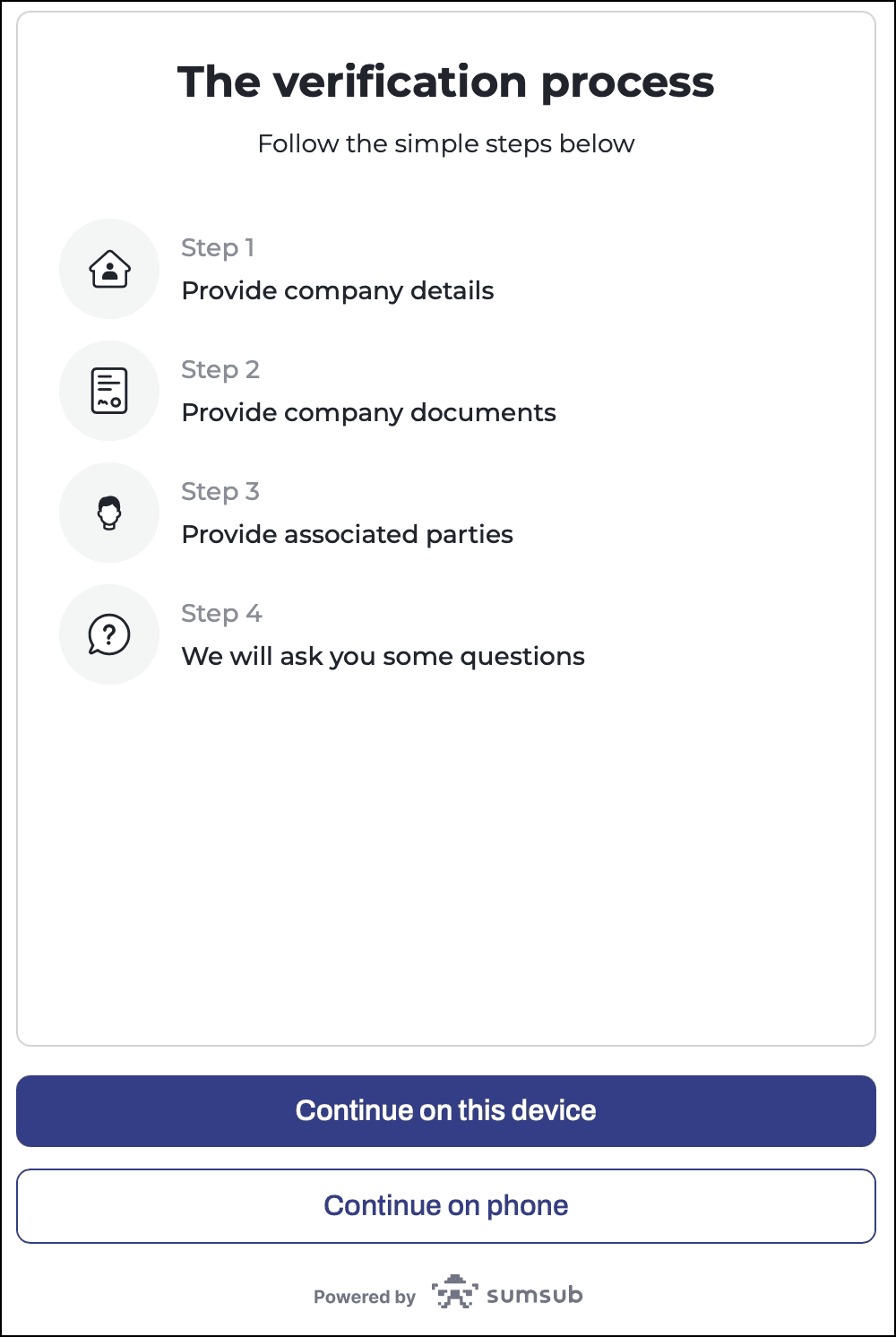
Learn more about Compliance Verification on the platform here.
Using Prospect Data in Transactions
When creating a deal on Wingform, select the transaction parties—buyers and sellers—from your prospect accounts. You can select multiple parties for either side. The data from your prospect accounts will automatically populate in the documents.
For detailed guidelines on document management on Wingform, visit this article.