
Overview
The built-in online editor is an integral part of Document Management on WINGFORM and allows users to seamlessly view, edit, and collaborate on templates and transaction documents. You can access the editor from the Documents page and when creating or executing a sales transaction.
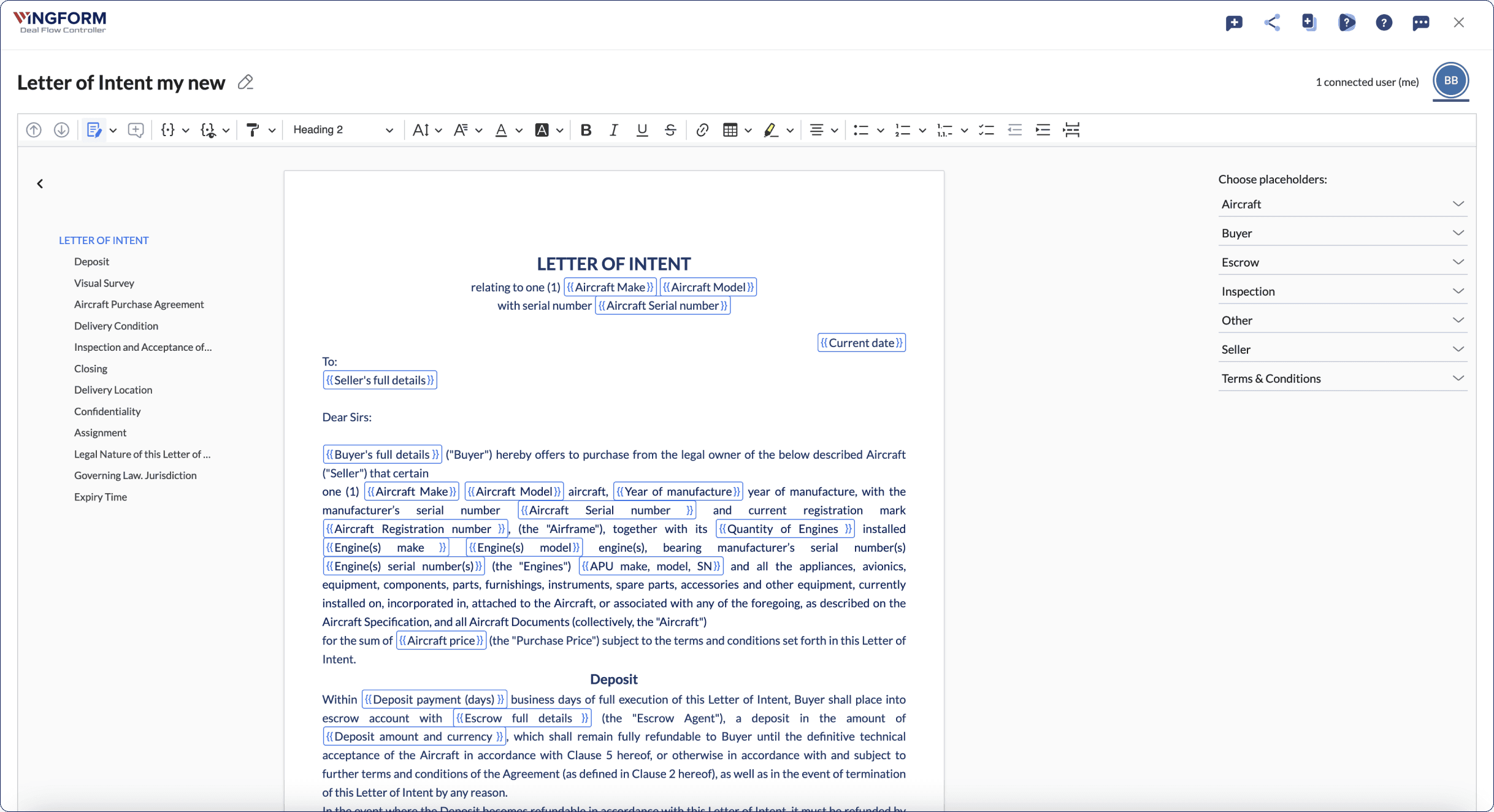
Key features
Creating new templates 
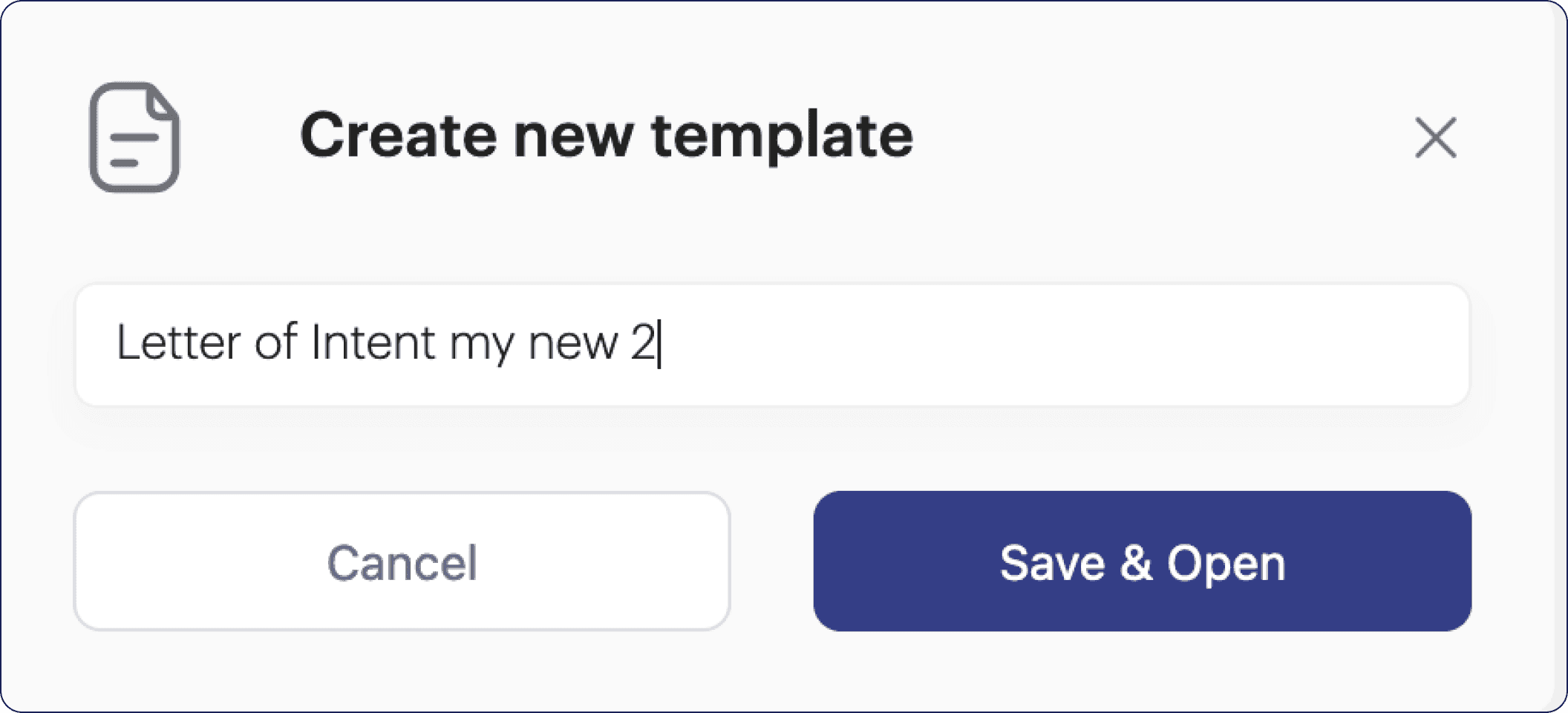
You can always duplicate a template to create a new one for a specific use case. The newly created document will be of the same type (e.g., a Letter of Intent). It is highly recommended to create separate templates for different transaction scenarios rather than modifying a single template repeatedly.
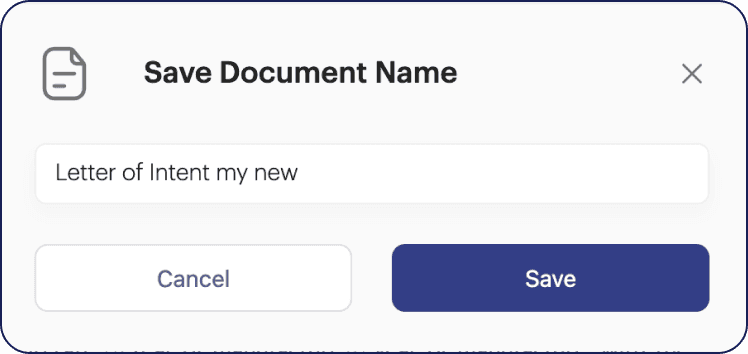
Renaming templates
Rename your templates or documents to clearly reflect their use case. This helps you
quickly identify the right template when setting up a deal.
Editing
Use standard rich-text editing tools to modify document content — formatting, section headings, tables, and so on.

Tracking changes
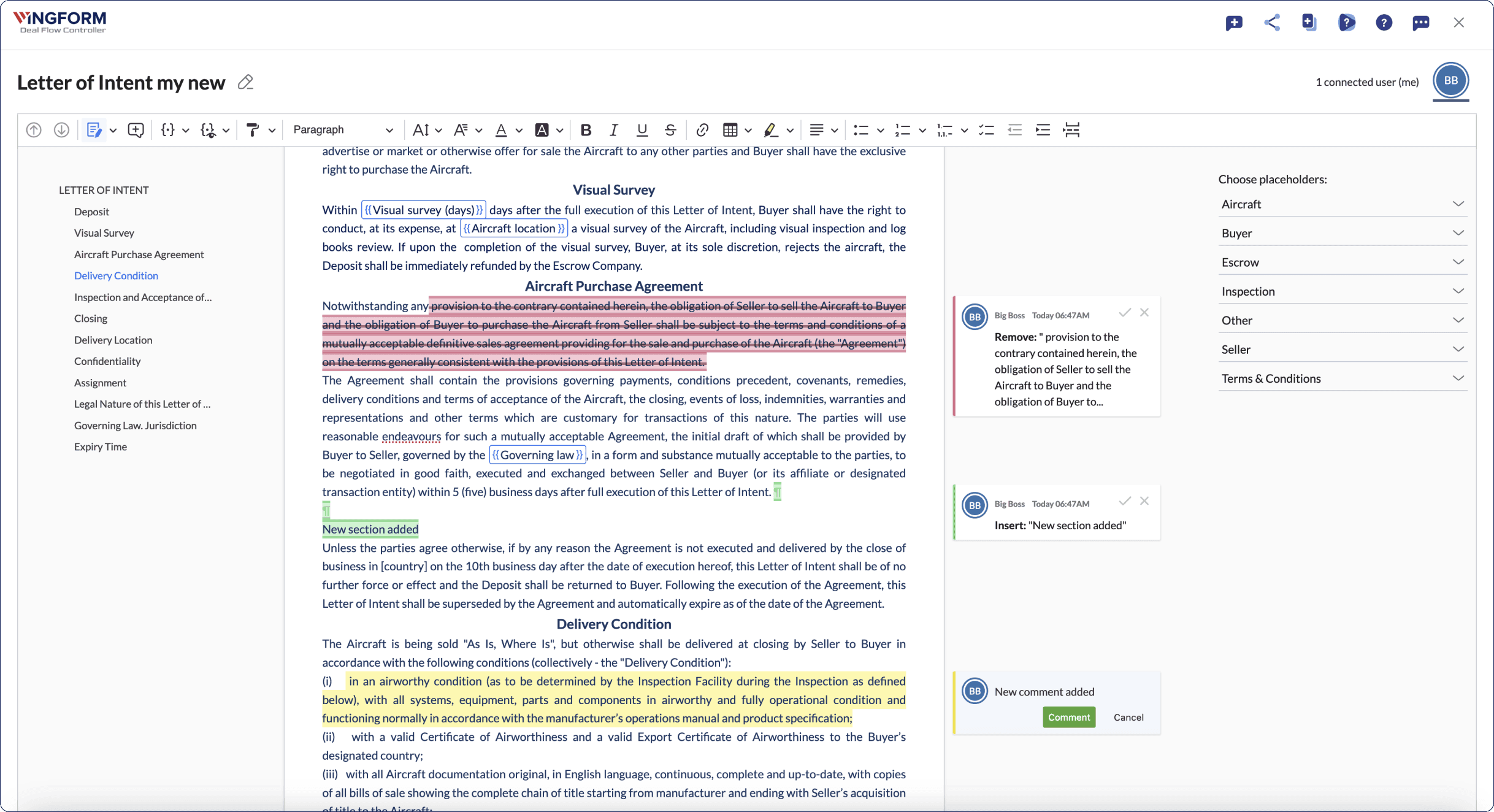
In Track Changes mode, you can:
-
Make comments and annotate sections.
-
Track changes made by you or your collaborators.
-
Accept or reject individual changes.
You can switch Track Changes mode off at any time. However, if you were invited to
collaborate on a document (i.e., you did not create it), Track Changes mode is always
on and cannot be disabled. You can discard your own suggestions, but you cannot accept them: that is left to the document owner and other collaborators.
Data Placeholders 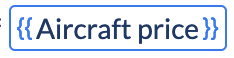
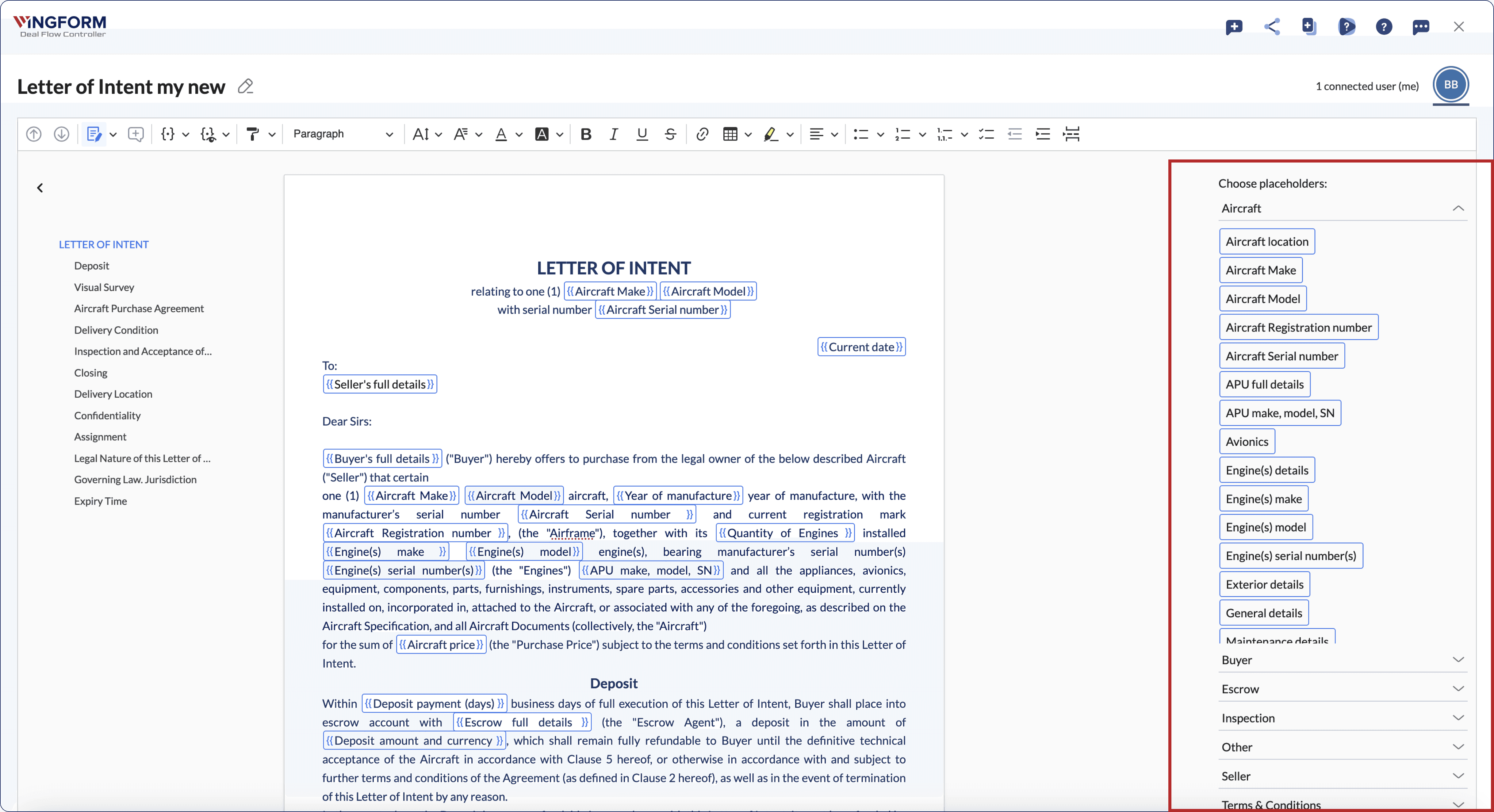
Placeholders (labels) are used in the template and document management to automatically populate transaction data (aircraft details, parties, terms and conditions, etc.) in the document during the transaction.
To insert a placeholder: drag and drop it from the placeholders panel into the
desired location in the document.
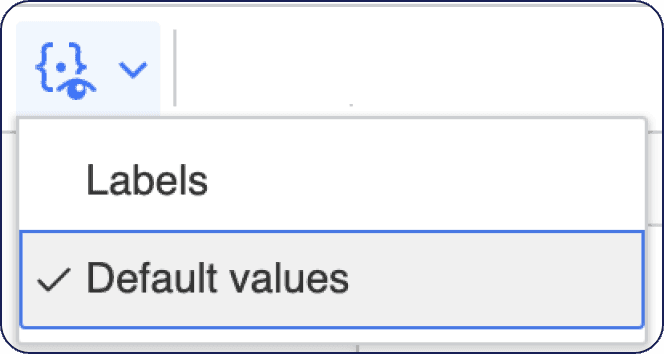
You can view the document in two modes:
-
Labels mode — shows placeholder tags (useful when editing a template).
-
Values mode — shows the actual data from the transaction (or default values in
templates). Deal documents always open in Values mode by default, but you can switch to Labels view at any time.
Collaboration 
The collaboration feature allows multiple parties to view, redline, or comment on a
document simultaneously — no need to send copies back and forth.
How to invite collaborators:
1. Open the document in the editor.
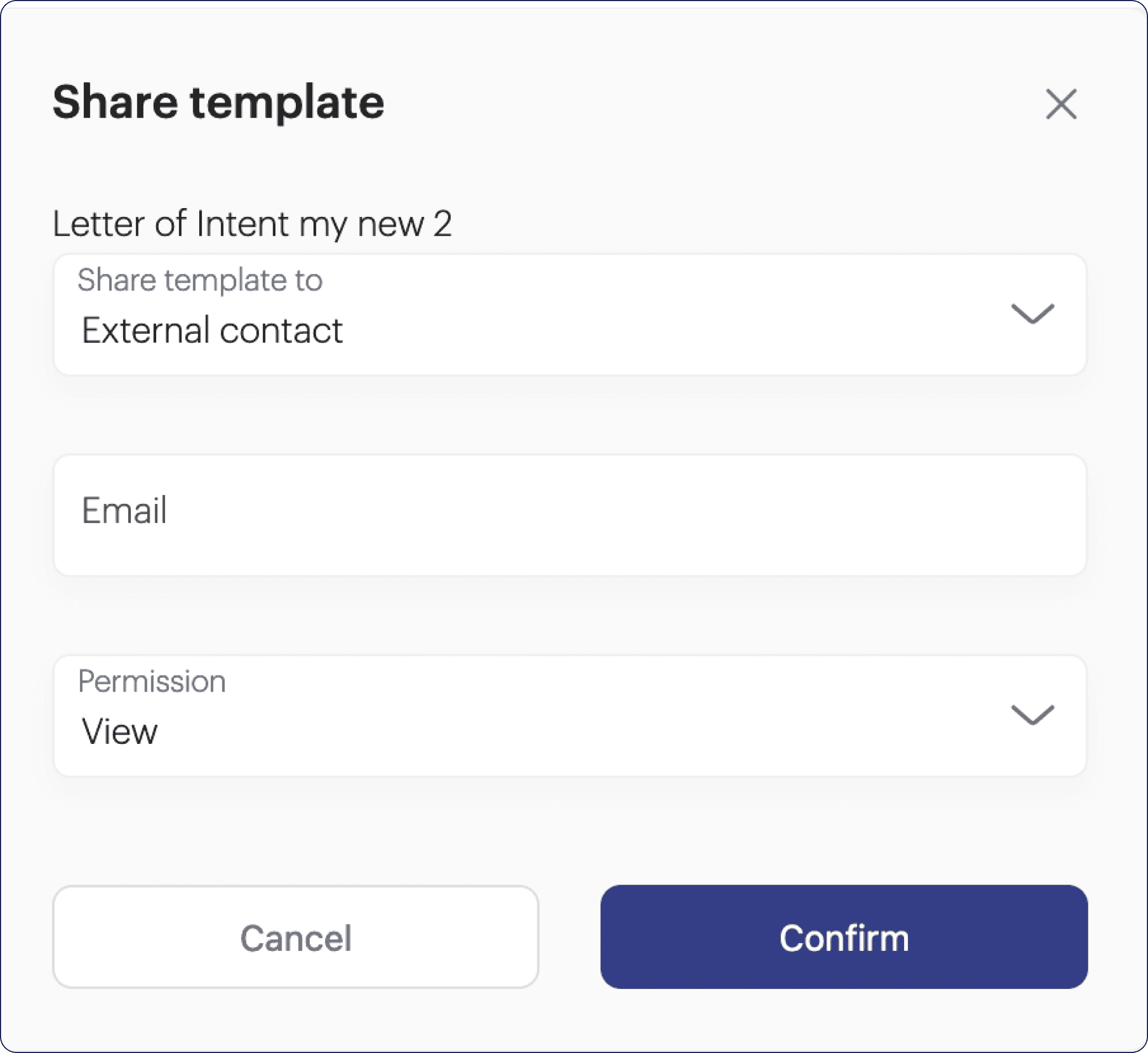
2. Click the Share / Invite button.
3. Enter the email addresses of team members or external users (lawyers, buyer or seller representatives).
4. Set permissions: View or Edit.
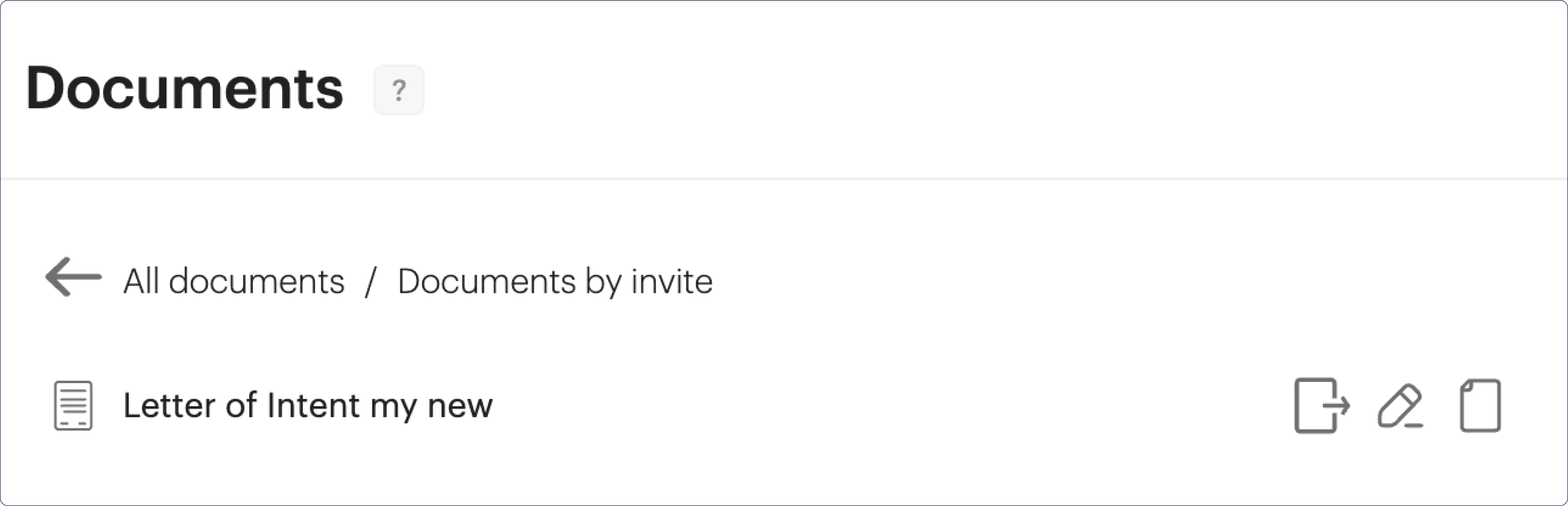
When a user is invited to a document, they will find it in the By invite tab on the
main Documents page. They can dismiss the invitation or open the document directly in the editor. Every invited collaborator works in Track Changes mode, so all of their edits appear as suggestions for the document owner to review.
All active collaborators are visible to each other in real time — their cursors and
selections appear within the document.
What an invited collaborator sees
If you were invited by email and do not have a Wingform workspace yet, you can register and open the shared document right away. Your Documents page shows a single tab, By Invite, with the documents shared with you, and a banner reminds you that you only have access to shared documents. To get full access to the platform, click Create workspace in the banner. You also receive notifications about the documents shared with you.
Autosave
All changes to the document are automatically saved. If you are working on a template for a specific use case, make sure to duplicate it first to create a new
template.
Read this article to learn more about Document and Template Management on Wingform.