
You can add records to the CRM manually or import them from a CSV file.
This article covers manual creation. For bulk uploads, use the Import tool instead.
Open the CRM from: https://app.wingform.com/crm
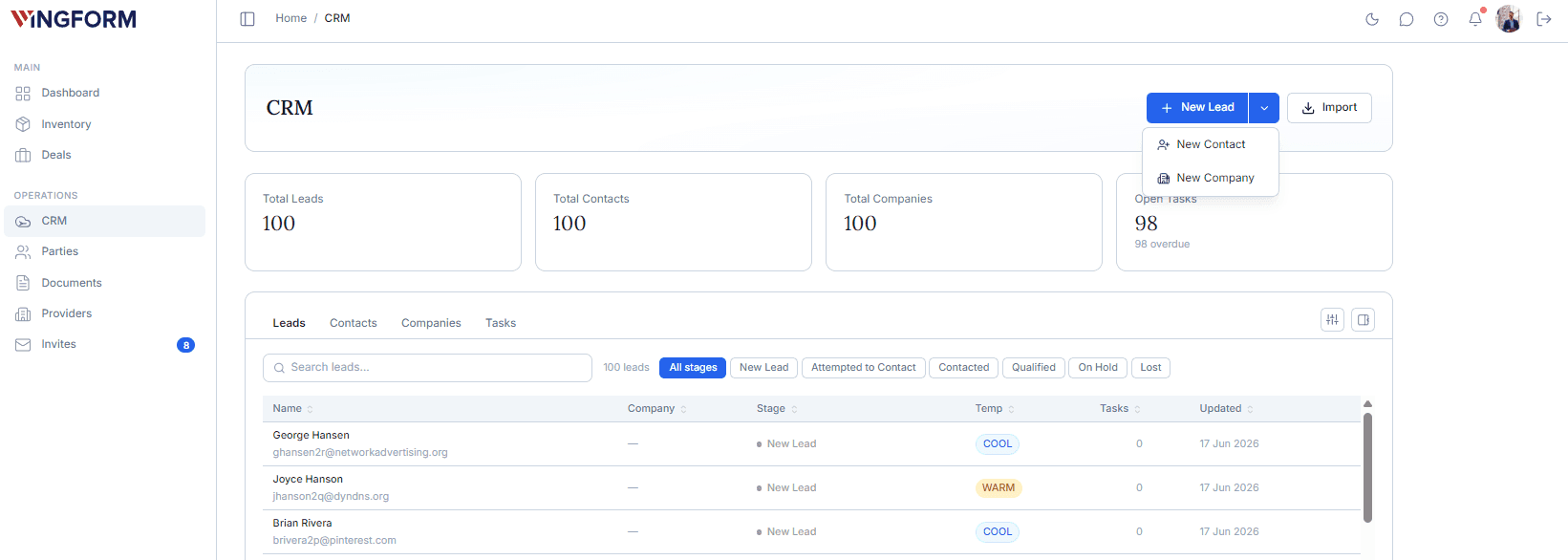
Before you create a record
Choose the record type based on what you know.
| Create this | When to use it |
|---|---|
| Lead | You have an enquiry or opportunity, but it is not yet fully qualified. |
| Contact | You want to save a person as a reusable CRM record. |
| Company | You want to save an organization as a reusable CRM record. |
| Task | You need to track a follow-up action connected to a CRM record. |
Creating a Lead
A Lead is the lightest CRM record. Use it for a potential opportunity, inbound enquiry, request for information, or early-stage conversation.
To create a Lead:
1. Open the Leads tab.
2. Select New Lead.
3. Complete the Lead form.
4. Link a Contact or Company if needed.
5. Add tasks if you already know the next steps.
6. Save the Lead.
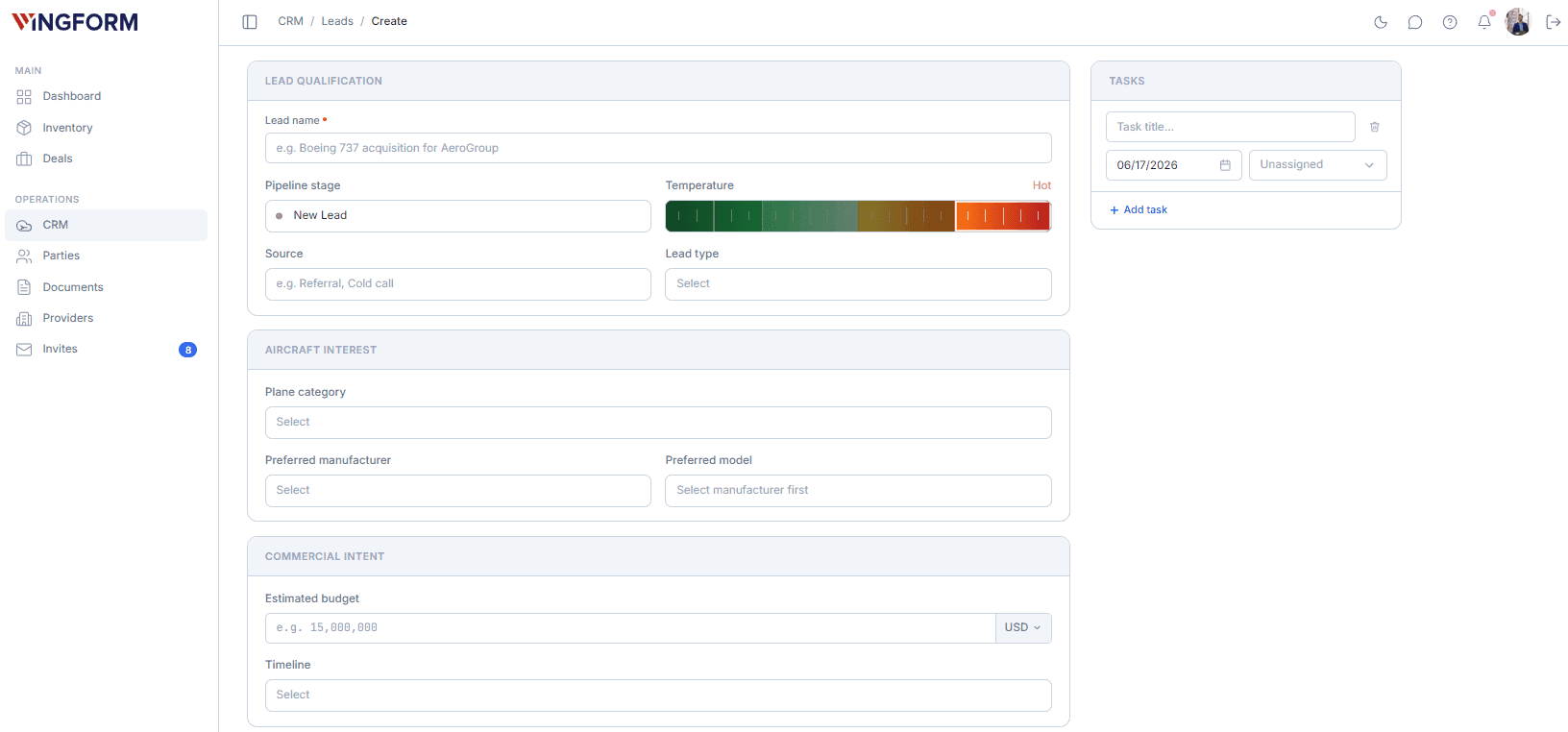
Lead form sections
The Lead form is grouped into practical sections.
| Section | What to enter |
|---|---|
| Lead Qualification | Lead name, stage, temperature, source, and lead type. |
| Aircraft Interest | Plane category, preferred manufacturer, and preferred model. |
| Commercial Intent | Estimated budget, currency, and timeline. |
| Contact Details | Email, phone, notes, and description. |
| Related Contact | Link the Lead to a person, if known. |
| Related Company | Link the Lead to an organization, if known. |
A Lead can have one related Contact, one related Company, both, or neither.
Linking a Contact or Company while creating a Lead
The Related Contact and Related Company sections let you choose how to handle the relationship.
| Option | What it does |
|---|---|
| None | Saves the Lead without that relationship. |
| Select existing | Links the Lead to a Contact or Company that already exists in the CRM. |
| Create new | Creates a new Contact or Company and links it to the Lead when you save. |
Use Create new when you do not want to leave the Lead form just to add a related record.
Creating a Contact
A Contact is a person you want to store in the CRM.
To create a Contact:
1. Open the Contacts tab.
2. Select New Contact.
3. Enter the person’s name and contact details.
4. Link the Contact to a Company if needed.
5. Save the Contact.
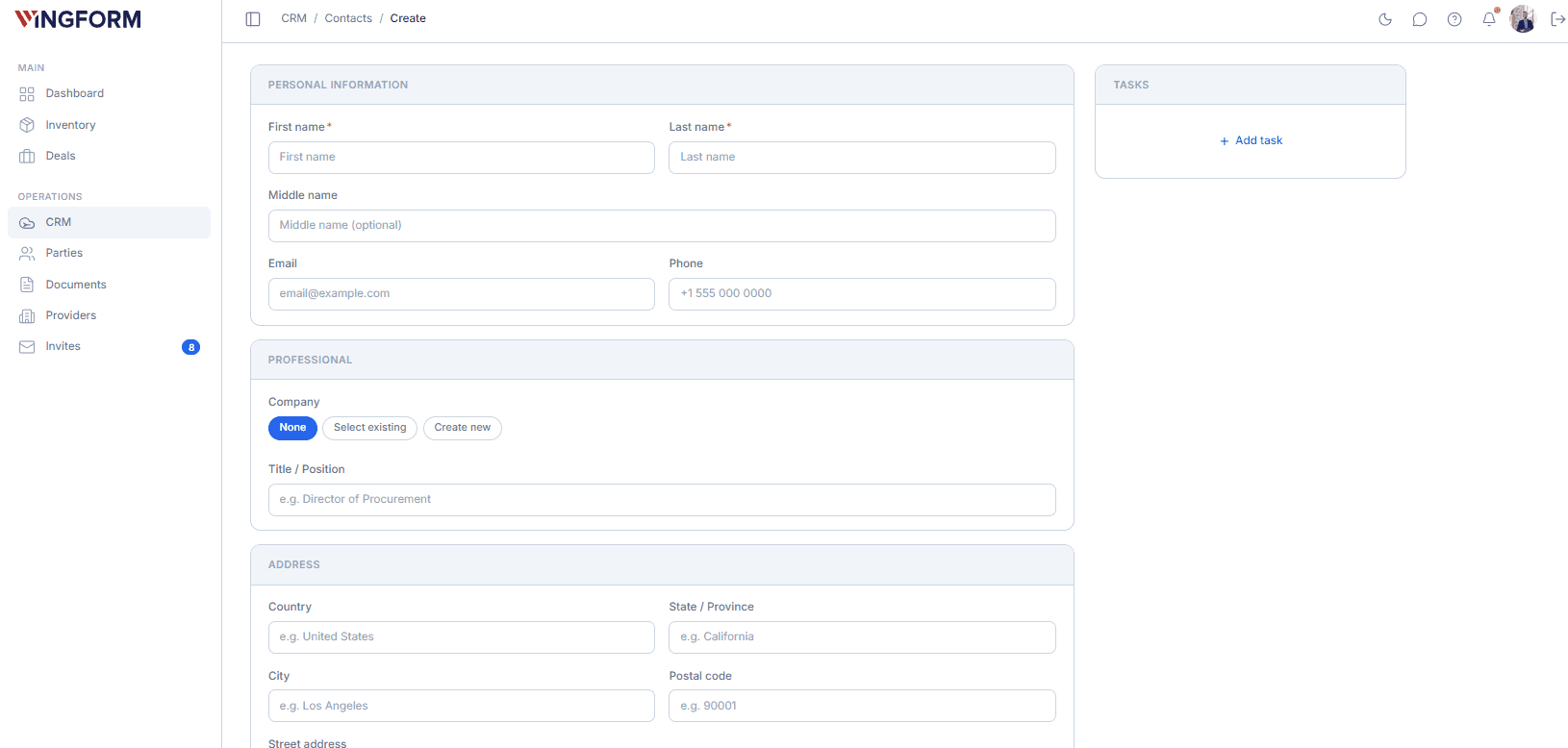
Contact form sections
| Section | What to enter |
|---|---|
| Personal information | First name, last name, middle name, email, and phone. |
| Professional | Job title or position, plus the Company the person belongs to. |
| Address | Country, state or province, city, postal code, and street. |
| Notes | Any useful context about the person. |
Wingform builds the display name from the name fields. Enter the name parts as clearly as possible, rather than putting everything into notes.
Linking a Contact to a Company
When you create or edit a Contact, the Company field gives you three options:
| Option | What it does |
|---|---|
| None | Saves the Contact without a Company. |
| Select existing | Links the Contact to a Company already in the CRM. |
| Create new | Creates a Company first, then links the Contact to it automatically. |
Use this relationship to keep people connected to the organizations they represent.
Creating a Company
A Company is an organization, such as an operator, dealer, fund, family office, or other business involved in your workflow.
To create a Company:
1. Open the Companies tab.
2. Select New Company.
3. Enter the Company information.
4. Add an Authorized Executive if relevant.
5. Save the Company.
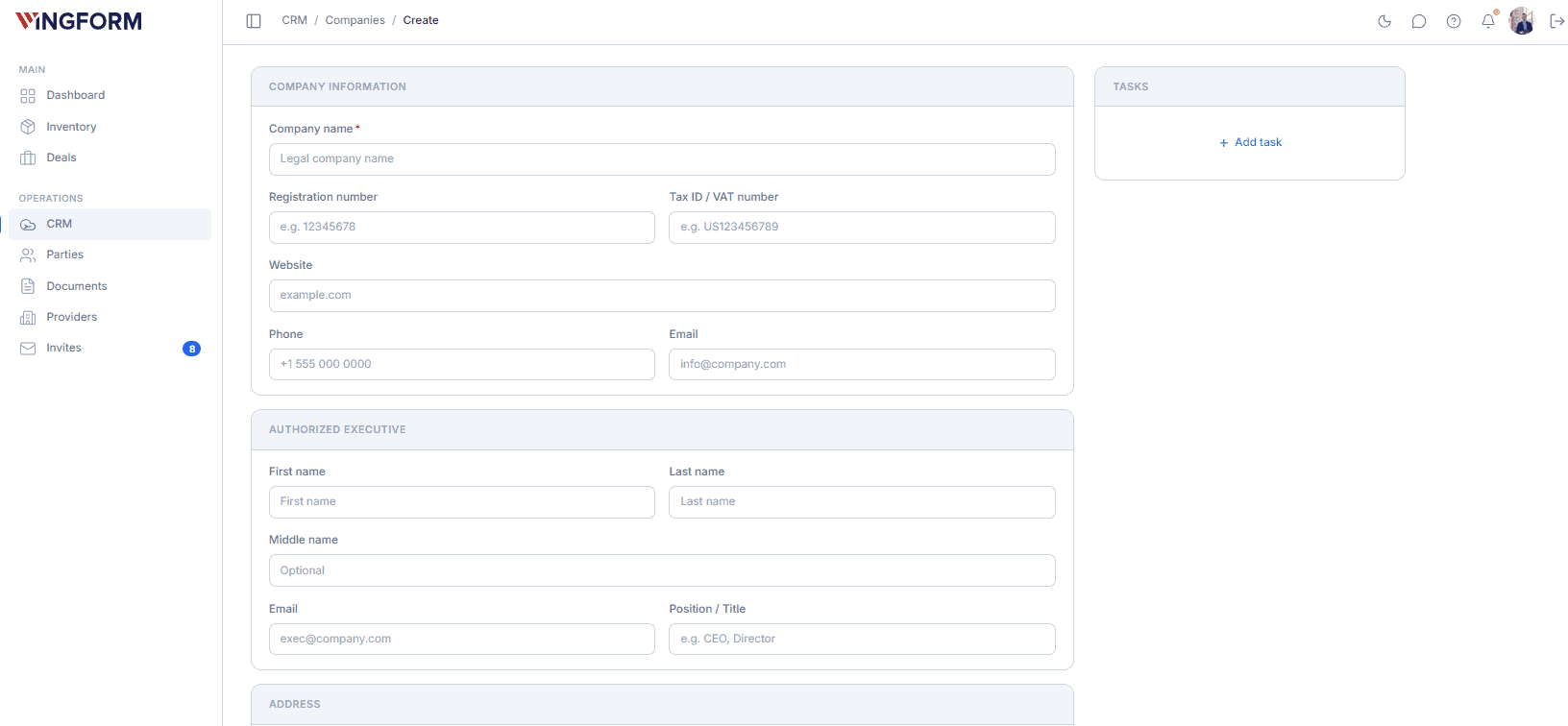
Company form sections
| Section | What to enter |
|---|---|
| Company information | Company name, email, phone, website, registration number, and tax ID. |
| Authorized Executive | Executive name, email, and position, if relevant. |
| Address | Country, state, city, postal code, and street. |
| Notes | Any useful context about the organization. |
If you enter a website as a bare domain, for example `company.com`, Wingform adds the `https://` prefix automatically.
Creating Tasks
Tasks are created from a CRM record rather than from a separate New Task page.
You can create a Task from:
- a Lead detail page;
- a Contact detail page;
- a Company detail page.
To create a Task:
-
Open the Lead, Contact, or Company record.
-
Find the Tasks panel.
-
Enter a clear task title.
-
Add a deadline, and assign the task.
-
Save the task by clicking Add. If you are creating a new record, the task will be saved automatically when the record is created.
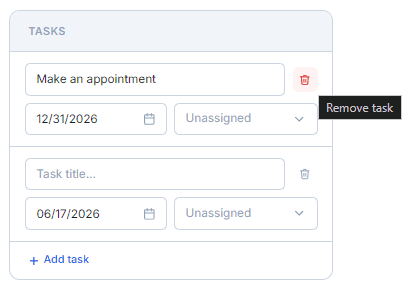
A Task can be linked to one Lead, one Contact, and one Company.
Editing tasks
Open tasks can be edited inline from the Tasks panel when you need to change the title or deadline.
For fuller task details, open the task page. This is especially useful for tasks imported from Salesforce Opportunities, where the task may also include an amount and stage label.
Completing tasks
Mark a task complete when the action is finished.
Important: completing a task is final. There is no reopen action in the CRM.
Editing records
To edit a Lead, Contact, or Company:
1. Open the record.
2. Select Edit.
3. Update the fields.
4. Save your changes.
Custom fields created during import are preserved when you edit a record.
Deleting records
To delete a Lead, Contact, or Company:
1. Open the record detail page.
2. Scroll to the delete action.
3. Confirm the deletion.
Use deletion carefully. If you only need to change wrong details, edit the record instead.
Good to know
- Manual create forms focus on standard CRM fields.
- Imported custom fields are managed mainly through the import flow and table columns.
- Creating a Contact or Company does not automatically make it a Principal Account.
- To use a Contact or Company as a buyer or seller in a deal, convert it into a Principal Account.